
Prise en charge intégrale
Dépannage et réparation HP DesignJet T520, T525 et T530
à Lyon et en Rhône-Alpes
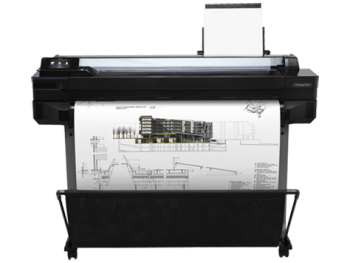
Spécialistes HP DesignJet depuis 1994.
Nous prenons en charge votre HP DesignJet T520, T525 et T530 de A à Z.
30 années d'expertise
Spécialiste HP DesignJet depuis 1994
Un technicien, pas un standard
Vous parlez directement à un expert
Devis en 2 heures
Intervention sur site en 48 h
Rhône-Alpes
Lyon, Grenoble, Annecy, Chambéry…
VOTRE TRACEUR T520, T525 et T530 EST EN PANNE ?
Dépannage et réparation du HP DesignJet T520, T525 et T530 sur site
Basés à Lyon, nous sommes idéalement situés pour dépanner et réparer votre HP DesignJet T520, T525 et T530 dans toute la région Rhône-Alpes.
Avec plus de 30 années d'expérience, nous dépannons et réparons tous les modèles HP DesignJet, des versions les plus anciennes aux dernières générations.
Chez nous, les modèles que d'autres services déclarent obsolètes ou irréparables restent réparables encore longtemps. Et si la réparation échoue, l'intervention ne vous est pas facturée.
Ce que comprend notre intervention sur votre HP DesignJet T520, T525 et T530
- Diagnostic gratuit par téléphone
- Devis de dépannage précis en 2 heures
- Dépannage en Rhône-Alpes en 48 heures
- Réparation de toutes les pannes
- Tarifs raisonnables et transparents
- Toutes les pièces détachées en stock
- Toutes nos interventions garanties 1 an sur site
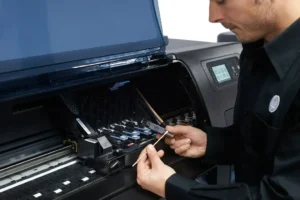
Chaque dépannage réalisé sur votre HP DesignJet T520, T525 et T530 est couvert par une garantie 1 an sur site : si la panne réparée se reproduit dans l'année, nous revenons chez vous sans frais, pièce et main-d'œuvre comprises.
Remplacement de la courroie + révision complète : À partir de 360 € HT
Votre traceur HP DesignJet T520, T525 et T530 affiche un code erreur 86:01 ou la courroie est déchirée ?
Notre technicien intervient sur site pour remplacer la courroie dans les règles de l'art. Le remplacement inclut le nettoyage interne complet du traceur — pas question de poser une courroie neuve dans un appareil encrassé.
Une fois la courroie remplacée, notre technicien teste la qualité d'impression, nettoie les têtes d'impression et optimise les réglages. Au départ du technicien, votre HP DesignJet T520, T525 et T530 aura droit à une seconde jeunesse.
Avant d'engager une réparation lourde, il vaut la peine de se demander si elle en vaut encore la peine : notre page réparer ou remplacer son traceur donne les cinq critères que nous passons en revue au téléphone. Et si le remplacement s'impose, nous rachetons votre HP DesignJet T520, T525 et T530, en état de marche ou non.
VOUS AVEZ BESOIN DE CARTOUCHES D'ENCRE ?
Nous avons en stock toutes les cartouches pour HP DesignJet T520, T525 et T530
- Stock important et permanent
- Livraison en 24h à Lyon — 48h France entière
- Cartouches originales HP uniquement
- Têtes d'impression également disponibles
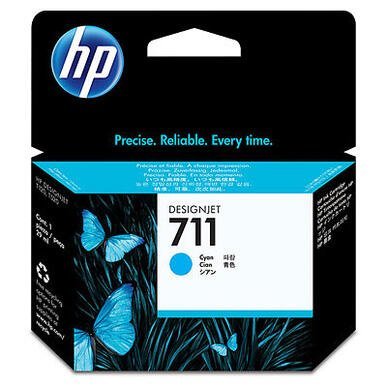
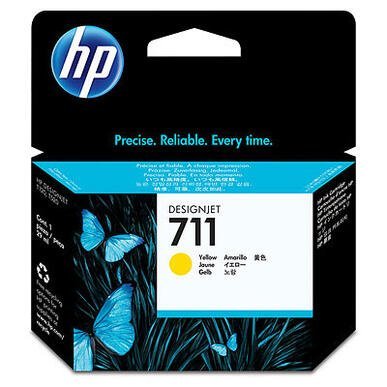
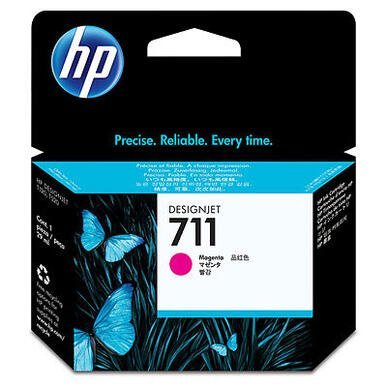
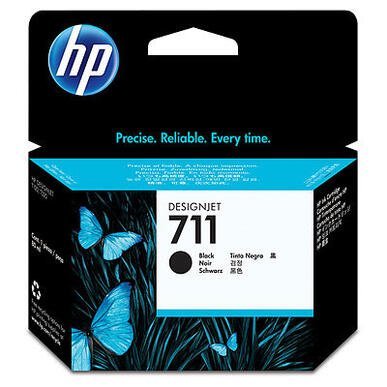
Faites défiler dans le cadre pour voir toutes les cartouches correspondant à votre modèle.
Prolongez la vie de votre traceur
Contrat de maintenance
Pour HP DesignJet T520, T525 et T530
Inclus dans les trois formules
- Nettoyage interne, graissage…
- Contrôle courroie, service station...
- Mise à jour firmware, réglages
- Tests d'impression, amélioration qualité
- Assistance téléphonique illimitée
- Télémaintenance avec TeamViewer
- Priorité sur les dépannages - garantis en 48h
En plus avec Privilège et Premium
- Main-d'œuvre illimitée incluse
- Déplacements illimités inclus
En plus avec Premium uniquement
- Pièces détachées incluses
- Carte mère incluse
- Remplacement préventif des pièces d'usure

RESSOURCES TECHNIQUES
Tout ce dont vous avez besoin sur le HP DesignJet T520, T525 et T530
Toutes nos ressources et nos 30 années d'expérience à votre disposition.
Pilotes d'impression, utilitaire d'impression PDF, codes erreur, pannes fréquentes, nomenclature des pièces détachées
Codes erreur fréquents
Chaque code renvoie à une pièce défectueuse précise — cliquez sur + pour l'explication complète
-
21:10 ou 21:13 ou 21.2:13 ou message «Maintenance recommandée»
Un traceur HP DesignJet T520, T525 et T530 qui affiche un code erreur 21:10 ou 21:13 indique qu’il y a un problème de Station Service.
+le code erreur 21:10, 21:13, 21.2:13 indique que la station service est HS. La Station service doit être remplacée.
Cause :
La station service du traceur HP DesignJet T520, T525 et T530 est HS ou bien le chariot du traceur HP DesignJet T520, T525 et T530 est bloqué dans la station service. Ce message peut être aléatoire au début. Redémarrer le traceur HP DesignJet T520, T525 et T530 peut être suffisant pour faire disparaitre le message et utiliser le traceur HP DesignJet T520, T525 et T530. Mais en général un traceur HP DesignJet T520, T525 et T530 qui fait une erreur 21:10 ou 21:13 le fait à nouveau, et l’erreur 21:10 ou 21:13 devient permanente et bloquante. Il faut alors faire intervenir un technicien pour remplacer la pièce défectueuse. Il arrive également que le traceur HP DesignJet T520, T525 et T530 affiche une erreur 21:10 ou 21:13 si la courroie est usée, le chariot pouvant alors se bloquer dans la Station Service. Dans ce cas, la pièce à remplacer sera la courroie et non la Station Service. Dès la première apparition du code erreur sur l’écran de votre traceur HP DesignJet T520, T525 et T530, faites-nous intervenir pour éviter un problème qui tôt ou tard bloquera votre traceur HP DesignJet T520, T525 et T530 et votre production.
Intervention technicien :
Prévoir une intervention de 1 heure + déplacement + pièce (station service).
-
86:01 ou Vérifier chemin des têtes d'impression ou Vérifier chemin papier
Un traceur HP DesignJet T520, T525 et T530 HP Designjet qui affiche un code erreur 86:01 indique que le chariot est bloqué.
+le code erreur 86:01 indique généralement que la courroie est HS.
Son remplacement est complexe car il nécessite un démontage important.
Notre technicien en profite pour faire une révision générale du traceur HP DesignJet T520, T525 et T530 (nettoyage, graissage, optimisation de la qualité d'impression...)Cause :
L’erreur 86:01 peut être causée par un bourrage papier causé par un intrus (morceau de papier...), mais la plupart du temps, le code erreur 86:01 survient quand la courroie du traceur HP DesignJet T520, T525 et T530 est HS (usée, déchirée...). En général ce message est bloquant. HP prévient le remplacement de la courroie tous les 5 ans. Votre traceur HP DesignJet T520, T525 et T530 ne fonctionnera à nouveau que quand le problème sera résolu ou que quand la courroie du traceur HP DesignJet T520, T525 et T530 sera remplacée.
Intervention technicien :
Le remplacement de la courroie de traceur HP DesignJet T520, T525 et T530 fait partie des interventions les plus courantes sur les traceurs HP Designjet. Chez Traceur HP DesignJet T520, T525 et T530 Lyon le technicien en profite pour faire une révision complète du traceur HP DesignJet T520, T525 et T530 : Nettoyage, graissage, contrôle général, contrôle de la qualité d’impression… Remplacer une courroie de traceur HP DesignJet T520, T525 et T530 est une intervention très minutieuse. Une courroie de traceur HP DesignJet T520, T525 et T530 remplacée par un technicien non spécialiste pourra engendrer un code erreur et la panne complète du traceur HP DesignJet T520, T525 et T530. La remise en état conséquente à une mauvaise intervention pouvant s’avérer bien plus complexe et plus couteuse que le simple remplacement de la courroie. En général prévoir une intervention de 2 heures + déplacement + fourniture de la courroie.
-
L'écran du traceur affiche un écran bleu
Un traceur HP DesignJet T520, T525 et T530 qui affiche un écran bleu ne peut pas démarrer.
+La carte mère du traceur HP DesignJet T520, T525 et T530 est HS ou le firmware est corrompu.
En général il suffit de remplacer le module USB du traceur HP DesignJet T520, T525 et T530 ou la Main PCA.Cause :
La carte mère du traceur HP DesignJet T520, T525 et T530 est HS ou le firmware est corrompu.
Intervention technicien :
En général il suffit de remplacer le module USB du traceur HP DesignJet T520, T525 et T530.
Prévoir une intervention d'une heure + déplacement + fourniture du module USB. -
Echec de l'imprimante, incident sur l'imprimante (ou le système d'encrage...)
Un traceur HP DesignJet T520, T525 et T530 qui affiche ce message a un problème avec la tête d'impression.
+ce message indique que la tête d'impression est HS.
Il faut remplacer la tête d'impression.Cause :
La tête d'impression est HS.
Intervention technicien :
Il faut remplacer la tête d'impression.
Prévoir une intervention d'une heure + déplacement + fourniture de la tête d'impression. -
Echec de chargement du support...
Un traceur HP DesignJet T520, T525 et T530 qui affiche ce message a un problème de capteur du chariot.
+ce message indique que le capteur du chariot est sale ou HS. En général les salissures sont causées par des coulures d'encre causées par la tête d'impression du traceur HP DesignJet T520, T525 et T530.
Il faut nettoyer ou remplacer le capteur du chariot.
En général il faut également remplacer la tête d'impression du traceur HP DesignJet T520, T525 et T530.Cause :
Le capteur du chariot est sale ou HS.
Intervention technicien :
Il faut nettoyer ou remplacer le capteur papier du chariot , nettoyer le traceur HP DesignJet T520, T525 et T530 et éventuellement remplacer la tête d'impression.
Prévoir une intervention d'une heure + déplacement + fourniture éventuelle du capteur papier et/ou de la tête d'impression.

Le code erreur affiché n'est pas dans la liste ?
N'hésitez pas à nous appeler, nous vous guidons par téléphone.
Tous les codes erreur
Traduction française par IA — en cas de doute sur une procédure, vérifiez le texte anglais d'origine (bouton EN).
Aucun résultat — contactez-nous
-
01.1:10
+Equal to 1 long beep during startup sequence. Communication with Main PCA (MPCA) failed. WiFi module, Trailing Cable, Bundle PCA FFC cable, cables kit
Solution :
Remote troubleshooting (call agent) 1. This error never appears in the Front Panel, it’s only logged into the Error History and is equivalent to 1 long beep during printer startup. It happens when the MPCA communication fails. 2. To troubleshoot this error, see The Front Panel is blank (the printer does not start). 3. If a service engineer visit should be arranged to replace the Main PCA, take into account the model of the printer (the Main PCA is different for Pro and Basic models). Onsite
-
01.1:19
+Incorrect Main PCA installed
Solution :
1. This system error happens if a Main PCA Basic is assembled in a Pro printer. To solve the issue, install the correct Main PCA Pro in the printer. • Main PCA Basic: CQ891-673 • Main PCA Pro: CQ89-6723 See Main PCA for the installation instructions.
-
01.3:10
+Bundle board communication failure. Bundle FFC, Main PCA
Solution :
Remote troubleshooting (call agent) 1. Switch the power off and disconnect the power cord. Reconnect the power cord and power on the printer. 2. The call agent should arrange a service engineer visit to change the Bundle PCA and follow steps below on Onsite Troubleshooting: • Bundle Board • CQ89-6722 3. If a different system error is displayed then the call agent should perform the applicable troubleshooting procedure. Onsite troubleshooting and solution (service engineer) 1. Remove cover
-
02:10
+Carriage PCA communication failure. Trailing Cables, Printhead, Encoder Strip
Solution :
1. Remove covers and check that the Trailing cables are connected from the Main PCA or from the Carriage PCA. If any cable is disconnected then reconnect it, and power on the printer again to check whether the error message has disappeared. 2. Go to Support Menu, see Entering the Extended Support Menu for service engineers and perform 2.1 Carriage Servo, see 2.1 Carriage servo to check that the error has disappeared. 3. Replace the Encoder Strip, see Encoder Strip and run the Carriage Servo d
-
03.1:10
+Real Time Clock (RTC) Battery ran down.
Solution :
Remote troubleshooting (call agent) 1. The call agent asks the customer to go to the Support Menu by pressing the Power key continuously for 15 seconds. 2. Go to the Diagnostics Menu and select RTC Battery Status to check whether the RTC Battery has actually expired, see 2.11 RTC battery status. 3. If yes, the call agent should arrange a service engineer visit to replace the RTC battery by replacing the Main PCA, see Main PCA. • Main PCA Basic: CQ891-673 • Main PCA Pro: CQ89-6723 Onsite
-
08:10
+Equals to 3 beeps during start up sequence. Front Panel does not respond
Solution :
Remote troubleshooting (call agent) 1. This error never appears in the Front Panel, it is only logged into the Error History, and is equivalent to the 3 beeps during printer startup. 2. It happens when there is no communication between the Front Panel and the Main PCA, see The Front Panel is blank (the printer does not start).
-
21:10
+Service Station does not work properly or communication lost. Bundle PCA
Solution :
Remote troubleshooting (call agent) 1. Switch the power off and disconnect the power cord. Reconnect the power cord and power on the printer. 2. The call agent should arrange a service engineer visit to change the Service Station, and follow the Onsite troubleshooting below: • Service station assy • CQ89-6745 3. If a different system error is displayed then the call agent should perform the applicable troubleshooting procedure. Onsite troubleshooting and solution (service engineer) 1. Rem
-
21.1:10
+Prime Pump does not work. Bundle PCA
Solution :
Remote troubleshooting (call agent) 1. Switch the power off and disconnect the power cord. Reconnect the power cord and power on the printer. 2. The call agent should ask the customer to go to the Support Menu, by pressing the power key continuously for 15 seconds. 3. Go to Diagnostics menu and perform the 2.8 Pump diagnostic procedure, see 2.8 Pump. 4. The call agent should arrange a service engineer visit to change the Pump, and to follow the Onsite troubleshooting below. • Prime pump • CQ8
-
26:10
+Ink System Failure. PHA, Service Station, Carriage PCA, Trailing Cables
Solution :
Remote troubleshooting (call agent) 1. This error never appears in the Front Panel, it is only logged into the Error History and it is equivalent to the message: There is a problem with the printer or ink system. Turn printer off, then on. If the problem persists, contact HP. 2. See Ink system hardware troubleshooting.
-
27:10
+Generic Printer Error. Carriage PCA, Trailing Cables
Solution :
Remote troubleshooting (call agent) 1. This error occurs only when the printhead is detected as faulty during first printer installation (Out Of the Box Experience). If it happens, follow printhead troubleshooting: see Printhead troubleshooting.
-
41:10
+Paper Servo error. Feed Encoder Sensor PCA, Feed Index Sensor PCA, Feed Encoder Disk
Solution :
Remote troubleshooting (call agent) 1. Switch the power off and disconnect the power cord. Reconnect the power cord and power on the printer. 2. The call agent asks the customer to go to Support Menu by pressing the Power key continuously for 15 seconds. 3. Go to 2 Diagnostics menu and run Paper Servo diagnostic, see 2.2 Paper servo. 4. After running the diagnostic the printer will show one of these system errors: • 41.2:1 arrange a service engineer to replace Paper/Feed motor and follow the
-
41.1:10
+Right Rear gear train failure. Bundle PCA, Multi-Sheet Tray
Solution :
Remote troubleshooting (call agent) 1. Switch the power off and disconnect the power cord. Reconnect the power cord and power on the printer. 2. The call agent should arrange a service engineer visit to change the Right Rear Gear Train, and follow the onsite troubleshooting below • Right rear gear train • CQ89-6741 3. If a different system error is displayed then the call agent should perform the applicable troubleshooting procedure. Onsite troubleshooting and solution (service engineer)
-
42:1:10
+Carriage motor failure. Carriage Belt, Main PCA
Solution :
Onsite troubleshooting and solution (service engineer) 1. Go to the Support Menu (see Entering the support menus) and run the diagnostic 2.1 Carriage Servo, see 2.1 Carriage servo. 2. Remove the covers and check that all the cables are well connected to the Main PCA, especially the Carriage motor cable, and that none of them are damaged. If a cable is not connected then reconnect it, and power on the printer again to check whether the system error has disappeared. Important note: If any cable
-
42:10
+Carriage servo problem. Trailing Cables, Carriage Board, Carriage Motor, Carriage Belt, Encoder Strip
Solution :
Remote troubleshooting (call agent) 1. Switch the power off and disconnect the power cord. Reconnect the power cord and power on the printer. 2. The call agent asks the customer to go to Support Menu by pressing the Power key continuously for 15 seconds. 3. Go to 2 Diagnostics menu and run 2.1 Carriage Servo diagnostic, see 2.1 Carriage servo. 4. After running this diagnostic the printer will show one of these system errors: • 42.1:1 Replace the Carriage motor and follow the Onsite Troublesh
-
45:10
+Rewinder motor failure. Main PCA
Solution :
Remote troubleshooting (call agent) 1. Switch off the printer, and disconnect the power cord. Reconnect the power cord and power on the printer. 2. The call agent should arrange a service engineer visit to change the Rewinder module, and follow the Onsite troubleshooting below. • Left Roll Support Pro • CQ89-6737 • Left Roll Support Basic • CQ89-6751 3. If a different system error is displayed then the call agent should perform the applicable troubleshooting procedure. Onsite troublesho
-
51:10
+Top Cover sensor failure. Main PCA
Solution :
Remote troubleshooting (call agent) 1. Switch off the printer, and disconnect the power cord. Reconnect the power cord and power on the printer. 2. The call agent asks the customer to go to Support Menu by pressing the Power key continuously for 15 seconds. 3. Go to 2 Diagnostics menu and run 2.4 Top Cover Sensor diagnostic, see 2.4 Top Cover Sensor. 4. The call agent should arrange a service engineer visit to change the Ink Cartridge Cover Sensor PCA; follow the onsite troubleshooting below.
-
51.1:10
+Ink Cartridge Cover sensor failure. Main PCA
Solution :
Remote troubleshooting (call agent) 1. Switch off the printer, and disconnect the power cord. Reconnect the power cord and power on the printer. 2. The call agent should arrange a service engineer visit to change the Ink Cartridge Cover Sensor PCA, and follow the Onsite troubleshooting below. • Ink Cartridge Cover Sensor • CQ89-6728 3. If a different system error is displayed then the call agent should perform the applicable troubleshooting procedure. Onsite troubleshooting and solution (
-
53.1:10
+OOP (Out-Of-Paper) Sensor failure. Bundle PCA, Bundle FFC, Main PCA
Solution :
Remote troubleshooting (call agent) 1. Switch off the printer, and disconnect the power cord. Reconnect the power cord and power on the printer. 2. The call agent will ask the customer to go to Support Menu by pressing the Power key continuously during 15 seconds 3. Go to Diagnostics and run 2.5 OOP Sensor diagnostic, see 2.5 Out-Of-Paper Sensor. 4. The call agent should recommend the customer to power off the printer, remove the Multitray sheet module, and check that there is no paper behind
-
53.2:10
+Output Tray sensor failure. Main PCA, Output tray
Solution :
Remote troubleshooting (call agent) 1. Switch off the printer, and disconnect the power cord. Reconnect the power cord and power on the printer. 2. The call agent asks the customer to go to Support Menu by pressing the Power key continuously for 15 seconds. 3. Go to Diagnostics menu and run 2.6 Output Tray Sensor diagnostic, see 2.6 Output Tray Sensor. 4. The call agent should send to the customer the Output Tray Sensor, which is a CSR part. • Output Tray Sensor Assembly • CQ89-915 NOTE: I
-
55:10
+Line sensor failure. Carriage PCA, Trailing Cable, Main PCA
Solution :
Remote troubleshooting (call agent) 1. Switch off the printer, and disconnect the power cord. Reconnect the power cord and power on the printer. 2. The call agent asks the customer to go to the Support Menu by pressing the Power key continuously for 15 seconds. 3. Go to the Diagnostics menu and run 2.7 Line Sensor diagnostic, see 2.7 Line Sensor. 4. The call agent should arrange a service engineer visit to change the Line Sensor assembly; follow the onsite troubleshooting below. • Line Sensor
-
59.1:19
+Main PCA and Ink Cartridge Sensor PCA replaced at the same time
Solution :
Onsite troubleshooting and solution (service engineer) 1. The error appears if, during a service operation, the Main PCA and the Ink Cartridge Cover Sensor PCA are replaced at the same time. 2. To recover, do the repair by changing first one component (use the old component for this printer); after powering the printer off and on, change the other.
-
59.2:19
+An unsupported or reused part has been installed
Solution :
Onsite troubleshooting and solution (service engineer) 1. The error appears if, during a service operation, the Main PCA or the Ink Cartridge Cover Sensor PCA are replaced by a reused part (not a new spare part). 2. To recover, do the repair using HP genuine new spare parts.
-
79:XX
+Generic Printer Error
Solution :
Turn the printer off and on again.
-
85.1:10
+Feed index encoder sensor does not work properly. Main PCA, Feed Encoder Disk
Solution :
Remote troubleshooting (call agent) 1. Switch off the printer, and disconnect the power cord. Reconnect the power cord and power on the printer. 2. The call agent should arrange a service engineer visit to change the Feed Index PCA and follow onsite troubleshooting below. • Feed Index encoder sensor PCA • CQ89-672 3. If a different system error is displayed then the call agent should perform the applicable troubleshooting procedure. Onsite troubleshooting and solution (service engineer)
-
85.2:10
+Feed encoder sensor does not work properly. Main PCA, Feed encoder Disk
Solution :
Remote troubleshooting (call agent) 1. Switch off the printer, and disconnect the power cord. Reconnect the power cord and power on the printer. 2. The call agent should arrange a service engineer visit to change the Feed encoder sensor PCA. • Feed Encoder Sensor PCA • CQ89-672 3. If a different system error is displayed then the call agent should perform the applicable troubleshooting procedure. Onsite troubleshooting and solution (service engineer) 1. Remove the covers and check that a
Problèmes fréquents
Cliquez sur + pour voir l'explication et les solutions
-
Problème de coupe papier
Si votre traceur HP DesignJet T520, T525 et T530 fait des bourrages au moment de couper le papier, c'est que le couteau (cutter) est HS.
+HP DesignJet T520, T525 et T530 qui a un problème de coupe papier a le couteau HS (cutter).
Il faut remplacer le couteau.Cause :
Le problème provient d'un couteau (cutter) HS, il faut le remplacer.
Intervention technicien :
Le remplacement du couteau du traceur HP DesignJet T520, T525 et T530 nécessite une intervention de 1 heure + déplacement + fourniture de la pièce.
-
Se bloque au démarrage
Un traceur HP DesignJet T520, T525 et T530 qui bloque au démarrage a généralement un problème de carte mère (Carte formatter ou Main PCA ou electronic module)
+HP DesignJet T520, T525 et T530 qui bloque au démarrage a la carte formatter ou la Main PCA HS.
Son remplacement est complexe car il nécessite un démontage important.Cause :
La carte formatter ou la Main PCA est HS, il va falloir la remplacer.
Intervention technicien :
Le remplacement de la carte nécessite l'intervention d'un technicien.
Prévoir 1 à 3 heures d'intervention + déplacement + le prix de la pièce. -
Alimenté mais ne démarre pas
Un traceur HP DesignJet T520, T525 et T530 qui ne démarre pas a généralement un problème de carte mère (Carte formatter ou Main PCA ou electronic module).
+HP DesignJet T520, T525 et T530 qui s'allume mais ne démarre pas a la carte formatter ou la Main PCA HS.
Son remplacement est complexe car il nécessite un démontage important.Cause :
La carte formatter ou la Main PCA est HS, il va falloir la remplacer.
Intervention technicien :
Le remplacement de la carte nécessite l'intervention d'un technicien.
Prévoir 1 à 3 heures d'intervention + déplacement + le prix de la pièce. -
L'écran reste blanc
Un traceur HP DesignJet T520, T525 et T530 dont l'écran reste blanc (éclairé mais sans aucune inscription) a un problème de carte mère (carte formatter ou Main PCA).
+HP DesignJet T520, T525 et T530 qui s'allume avec un écran blanc à la carte formatter ou la Main PCA HS.
Son remplacement est complexe car il nécessite un démontage important.Cause :
La carte formmater ou la Main PCA est HS, il faut la remplacer.
Intervention technicien :
1/ Identifier précisément la pièce à remplacer à l'aide des 3 voyant qui se trouvent à côté de la prise réseau.
2/ Faire intervenir un technicien pour remplacer la pièce défectueuse, prévoir 1 à 3 heures de main d'oeuvre + déplacement + la fourniture de la pièce. -
Le traceur HP DesignJet T520, T525 et T530 ne répond pas aux ordres du PC
Le traceur HP DesignJet T520, T525 et T530 est allumé, affiche prêt, mais ne réagit pas.
+HP DesignJet T520, T525 et T530 qui démarre correctement mais ne répond pas aux ordres du PC a un problème de communication.
Le problème peut avoir plusieurs origines : Adresse IP mal paramétrée, mauvais pilote d'impression, câble HS...
La recherche du "coupable" peut être compliquée.Cause :
Les causes possibles sont :
- Le câble réseau est HS ou déconnecté.
- Il y a un problème d'adresse IP : Conflit d'adresse, adresse changée, box inaccessible...
- Le pilote est corrompu ou pas compatible.Auto-dépannage :
Vérifiez la connexion physique du réseau (les câbles, la box, le switch...)
Vérifiez l'adresse IP du traceur HP DesignJet T520, T525 et T530 (changement d'adresse, absence de conflit...)
Vérifiez le pilote d'impression
Si tout est en ordre il se peut que la carte réseau du traceur HP DesignJet T520, T525 et T530 soit HS.Intervention technicien :
Pour une interventions sur site prévoir 1 à 3 heures pour faire tous les tests étape par étape et identifier l'origine du problème + déplacement + fourniture éventuelle d'une carte réseau.
-
Pas d'alimentation électrique
Un traceur HP DesignJet T520, T525 et T530 qui ne présente aucune trace d'alimentation électrique a probablement le bloc alimentation HS.
+HP DesignJet T520, T525 et T530 qui n'est plus du tout alimenté a le bloc d'alimentation HS.
Son remplacement est complexe car il nécessite un démontage important.Cause :
Le bloc d'alimentation est HS, il va falloir le remplacer.
Intervention technicien :
Le remplacement du bloc d'alimentation nécessite l'intervention d'un technicien.
Prévoir 1 à 2 heures d'intervention + déplacement + le prix de la pièce. -
Problème de qualité d'impression
Votre traceur HP DesignJet T520, T525 et T530 a une mauvaise qualité d'impression.
+HP DesignJet T520, T525 et T530 qui a un problème de qualité d'impression (couleurs non conformes, couleurs non homogènes, traits mal formés, bavures, impressions vierge ou incomplètes...) a une tête d'impression en mauvais état.
Vous pouvez essayer de lancer une procédure de nettoyage de la tête d'impression. Si la procédure ne résout pas le problème, c'est qu'il faut remplacer la tête. Vous pouvez nous la commander et essayer de la remplacer par vous même.
En cas de doute, faites nous intervenir, notre technicien en profitera pour faire une révision du traceur HP DesignJet T520, T525 et T530.Cause :
Il y a de fortes chances pour la tête d'impression de votre traceur HP DesignJet T520, T525 et T530 soient usée.
La majorité des problèmes de qualité d'impression (couleurs non conformes, couleurs non homogènes, traits mal formés, bavures, impressions vierge ou incomplètes...) sont causés par une tête d'impression usée ou HS .Auto-dépannage :
Commencez par remplacer la tête d’impression de votre traceur HP DesignJet T520, T525 et T530.
Contrairement aux cartouches, la tête d’impression de votre traceur HP DesignJet T520, T525 et T530 n'est pas pleine ou vide.
Elle s’use au four et à mesure de son utilisation et de son âge.
Selon l’intensité et l’usage du traceur HP DesignJet T520, T525 et T530, une tête aura une espérance de vie de plusieurs mois à plusieurs années.
Le traceur HP DesignJet T520, T525 et T530 mémorise l’usage de la tête d’impression. Il arrive qu’un traceur HP DesignJet T520, T525 et T530 propose ou exige le remplacement d'une tête trop usée ou en mauvais état.
Il arrive aussi que la tête d’impression soit usée et provoque de mauvaises impressions sans que le traceur HP DesignJet T520, T525 et T530 ne signale quoi que ce soit.
Si c’est le cas, n’hésitez pas à remplacer votre tête d’impression.
Attention, le remplacement de la tête d'impression nécessite d'avoir des cartouches suffisamment pleines.Intervention technicien :
Si vous ne souhaitez pas remplacer la tête d'impression par vous-même, nous pouvons intervenir pour la remplacer, prévoir 1 heure de main d'oeuvre + déplacement + fournitures de la tête neuve + fourniture éventuelle de cartouches neuves (nécessaires au remplacement de la tête d'impression).
Si le remplacement de la tête d'impression est impossible ou si le problème n'est pas résolu, c'est que le problème est plus complexe, prévoir alors une intervention de 1 heure à 3 heures + déplacement fourniture éventuelle de pièces détachées (station service, inktube, chariot...)
Nomenclature des pièces détachées
Aucune pièce trouvée — contactez-nous
- CQ893-67002 36 Back cover
- CQ890-67008 36 Central Window
- CQ894-67001 36 Front Cover
- CQ893-67003 36 Roll cover
- CQ890-67053 Stand Assy
- CQ893-67007 36 Starwheel assy and Output shaft, Part CQ893-67007 is no longer supplied. Please order the replacement, CQ893-67022
- CQ894-67002 36 Upper roll media guide
- CQ890-67081 Amp XL PRO main PCA SV new ID, Part CQ890-67081 is no longer supplied. Please order the replacement, CQ890-67097
- CQ890-67006 AmpXL 24 Carriage motor SV
- CQ890-67096 AmpXL 24 Encoder strip SV-Rein
- CQ890-67065 AmpXL 24 Encoder strip SV-Reinf Enc Stri,Part CQ890-67065 is no longer supplied. Please order the replacement, CQ890-67096
- CQ893-67016 AmpXL 36 Belt SV, Part CQ893-67016 is no longer supplied. Please order the replacement, F9A30-67068
- CQ893-60077 AmpXL 36 Carriage assembly w/b and lube
- CQ893-67011 AmpXL 36 Carriage assembly w/belt SV, Part CQ893-67011 is no longer supplied. Please order the replacement, CQ893-60077
- CQ893-67004 AmpXL 36 Central Cover SV, Part CQ893-67004 is no longer supplied. Please order the replacement, CQ893-67025
- CQ893-67025 AmpXL 36 Central Cover Textured SV
- CQ893-67029 AmpXL 36 Encoder strip SV
- CQ890-67004 AmpXL 36 Encoder strip SV,Part CQ890-67004 is no longer supplied. Please order the replacement, CQ893-67029
- CQ893-67020 AmpXL 36 Encoder strip SV,Part CQ893-67020 is no longer supplied. Please order the replacement, CQ893-67029
- CQ893-67005 AmpXL 36 Output Platen SV
- CQ893-67008 AmpXL 36 Spindle module SV
- CQ893-67022 AmpXL 36 Starwheel assy SV Repack
- CQ893-67021 AmpXL 36-in PM Kit SV with grease, Part CQ893-67021 is no longer supplied. Please order the replacement, CQ893-67028
- CQ893-67024 AmpXL 36in PM Kit SV_Grease_Y margin, Part CQ893-67024 is no longer supplied. Please order the replacement, CQ893-67028
- CQ893-67028 AmpXL 36in PM Kit SV_Grease_Y_Lid CSR
- CQ893-67017 AmpXL 36-in PMK1 Carriage SV, Part CQ893-67017 is no longer supplied. Please order the replacement, CQ893-67028
- CQ893-67001 AmpXL 36Trailing cable SV
- CQ890-67089 AmpXL 5V Power Supply SV
- CQ890-67007 AmpXL Accessory tray SV
- CQ890-67022 AmpXL Bundle board SV, Part CQ890-67022 is no longer supplied. Please order the replacement, CQ890-67088
- CQ890-67021 AmpXL cable SV
- CQ890-67001 AmpXL Carriage Zim sensor SV
- CQ890-67026 AmpXL Control panel SV,Part CQ890-67026 is no longer supplied. Please order the replacement, CQ890-67082
- CQ890-67082 AmpXL Control Panel Text_and_Gloss SV
- CQ890-67017 AmpXL Cutter Assy SV, Part CQ890-67017 is no longer supplied. Please order the replacement, CQ890-67108
- CQ890-67033 AmpXL Encoder disk SV
- CQ890-67086 AmpXL Ink Door Cover Textured SV
- CQ890-67028 AmpXL Ink Door Sensor SV
- CQ890-67106 AmpXL Labels SV
- CQ890-67072 AmpXL Labels SV ePrinter, Part CQ890-67072 is no longer supplied. Please order the replacement, CQ890-67106
- CQ890-67084 AmpXL Left Cover Textured SV
- CQ890-67044 AmpXL Left side spittoon SV
- CQ890-67023 AmpXL Main PCA Pro SV, Part CQ890-67023 is no longer supplied. Please order the replacement, CQ890-67097
- CQ890-67032 AmpXL OOPS Sensor flag SV, Part CQ890-67032 is no longer supplied. Please order the replacement, CQ890-67076
- CQ890-67076 AmpXL OOPS Sensor flag w/tape SV
- CQ893-67018 AmpXL Output Tray Sensor SV
- CQ890-67036 AmpXL Paper motor SV
- CQ890-67060 AmpXL Pinches Assy SV
- CQ890-67025 AmpXL Power supply SV, Part CQ890-67025 is no longer supplied. Please order the replacement, CQ890-67089
- CQ890-67030 AmpXL Prime pump assy SV
- CQ890-67037 AmpXL Pro Left roll support w/ cover SV
- CQ890-67073 AmpXL Right Cover SV ePrinter, Part CQ890-67073 is no longer supplied. Please order the replacement, Q1292-67039
- CQ890-67107 AmpXL Right Cover Textured SV
- CQ890-67077 AmpXL Right Gear Train mod SV
- CQ890-67041 AmpXL Right gear train module SV,Part CQ890-67041 is no longer supplied. Please order the replacement, CQ890-67077
- CQ890-67020 AmpXL Sensor Kit-DR,OP TRY,FEED IDX SV
- CQ890-67045 AmpXL Service station assy SV
- CQ893-67009 AmpXL spindle hubs SV
- CQ890-67104 AXL Screws kits
- F9A30-67068 Belt 36 inches ,pulley included
- CQ890-67012 Case left, Part CQ890-67012 is no longer supplied. Please order the replacement, CQ890-67084
- CQ890-67011 Case right,Part CQ890-67011 is no longer supplied. Please order the replacement, Q1292-67039
- CQ890-67108 Cutter AXLP SCR SV KIT
- CQ890-67090 Cutter CSR SV kit, Part CQ890-67090 is no longer supplied. Please order the replacement, CQ890-67108
- CQ890-67091 Cutter Y margin new Extract Li, Part CQ890-67091 is no longer supplied. Please order the replacement, CQ890-67108
- CQ890-67066 Floating Cutter Assy SV - New Blade Lid, Part CQ890-67066 is no longer supplied. Please order the replacement, CQ890-67108
- CZ126S HP 711 12-ml Intro Cyan Ink Cartridge
- CZ127S HP 711 12-ml Intro Magenta Ink Cartridge
- CZ128S HP 711 12-ml Intro Yellow Ink Cartridge
- CZ130A HP 711 29-ml Cyan Ink Cartridge
- CZ131A HP 711 29-ml Magenta Ink Cartridge
- CZ132A HP 711 29-ml Yellow Ink Cartridge
- CZ129A HP 711 38-ml Black Ink Cartridge
- CZ129AB HP 711 38-ml Black Original Ink Crtg
- CZ134A HP 711 3-Pack 29-ml Cyan Ink Cartridge
- CZ135A HP 711 3-Pack 29-ml Mag Ink Cartridge
- CZ136A HP 711 3-Pack 29-ml Yellow Ink Cartridge
- CZ134AB HP 711 3-Pack Cyan Original Ink Crtg
- CZ135AB HP 711 3-Pack Magenta Original Ink Crtg
- CZ136AB HP 711 3-Pack Yellow Original Ink Crtg
- CZ133A HP 711 80-ml Black Ink Cartridge
- CZ133AB HP 711 80-ml Black Original Ink Crtg
- CZ130AB HP 711 Cyan Original Ink Cartridge
- CZ131AB HP 711 Magenta Original Ink Cartridge
- C1Q10A HP 711 Printhead Replacement Kit
- CZ132AB HP 711 Yellow Original Ink Cartridge
- CQ890-67046 Ink Door Cover,Part CQ890-67046 is no longer supplied. Please order the replacement, CQ890-67086
- CQ890-60244 KIT, FRICTION REPAIR
- CQ890-67057 Labels Kit, Part CQ890-67057 is no longer supplied. Please order the replacement, CQ890-67106
- CQ890-67097 MPCA and Bundle_PowerOn New SV Kit
- CQ890-67094 MPCA and Bundle_PowerOn SV Kit, Part CQ890-67094 is no longer supplied. Please order the replacement, CQ890-67097
- CQ890-67047 Multi-Sheet Tray Extensions
- CQ890-67102 OOPS Sensor flag w/tape-Big Locators SV
- CQ893-67027 Output Platen New Lid 36
- CQ890-67088 PCA - Bundle New CAPs SV
- CQ891-60023 Power Cord- APJ SV KIT
- CQ891-60022 Power Cord: AMS SV KIT
- CQ890-67085 Right Cover ePrint Textured, Part CQ890-67085 is no longer supplied. Please order the replacement, CQ890-67107
- CQ890-67054 Stand hardware kit
- CQ890-67038 T520 Right roll support w/ cover
- CQ890-67019 T520 output tray
- Q6659-67017 Trailing Cable 44-in PCA w/ MOD TC
- Q5669-67072 TrailingCable 24 PCACover w/ MOD TC
- CQ890-67105 USB New Module with F/W SV
- Q6659-67019 Z3100 44in CarriageAssy Sv w/ Hitachi TC
Pilote d'impression
Télécharger →Utilitaire PDF
Télécharger →Firmware
Télécharger →Fiche technique
Télécharger →Besoin d'assistance ? Nous pouvons prendre la main à distance.
Télécharger TeamViewerNous contacter
Votre HP DesignJet T520, T525 et T530 est en panne ?
Appelez directement notre expert ou remplissez le formulaire de contact. Pas de serveur vocal, pas d'attente.
Nous vous répondons en général en moins de 2 heures.
- 04 78 01 03 24
- info@traceur-lyon.fr
- 23 bis rue Victor et Roger Thomas
69008 Lyon
Devis sous 2h
Demandez votre devis HP DesignJet T520, T525 et T530
Décrivez votre panne (code erreur affiché, symptôme constaté). Nous vous rappelons sous 2 h avec un devis personnalisé.
- Diagnostic gratuit par téléphone
- Réponse sous 2 heures
- Intervention sur site en 48 h en Rhône-Alpes
- Pièces du T520, T525 et T530 en stock à Lyon
- Dépannages garantis 1 an sur site